September 20, 2026
4 WhatsApp Business Privacy Fixes Small Practices Should
Turn on two-step verification, enable a screen lock, set default disappearing messages, and restrict last seen and read receipts. Those four changes cut most of the account risk and long-term data exposure small businesses carry on WhatsApp. Consider Strict Account Settings only if your intake doesn’t depend on receiving unsolicited photos. Every control lives inside the WhatsApp Business App, and the exact steps are outlined in WhatsApp’s Business App Privacy Policy.
TL;DR:
- Enabling two-step verification with a recovery email prevents account takeovers, especially amid the $470 million scam losses in 2024 related to SMS fraud.
- Setting an immediate screen lock and restricting last seen to contacts reduces risks of unauthorized access and limits data exposure.
- Default disappearing messages set to 90 days balance ongoing support needs and privacy, but longer retention might be necessary for regulated industries like healthcare.
- For practices relying on unsolicited media, Strict Account Settings may block essential workflows, so a careful workflow audit is crucial before activation.
- Using a managed platform like Diazluna automates privacy controls and bilingual workflows, reducing manual oversight and keeping intake both structured and privacy-aware.
Table of Contents
- Your Five-Minute WhatsApp Business Privacy Checklist
- What Each Privacy Setting Actually Does
- Your Business Profile Is More Public Than You Think
- Choosing Defaults That Fit Your Industry
- How Diazluna Sets Up Bilingual Practices
- The Tradeoff Nobody Talks About Enough
- A Managed Alternative for Bilingual Practices
- Sources
- FAQ
Your Five-Minute WhatsApp Business Privacy Checklist
You don’t need an afternoon for this. Most of it takes less time than brewing coffee.
- Two-step verification (2 minutes, must do now). Go to Settings > Account > Two-step verification and turn it on. Add a recovery email so you’re not locked out if you lose your PIN.
- Screen lock (1 minute, must do now). On iOS: Settings > Privacy > Screen Lock. On Android: Settings > Privacy > App lock. Set it to require Face ID, fingerprint, or PIN immediately, not after a delay.
- Restrict last seen and read receipts (1 minute, must do now). Settings > Privacy > Last seen and online, set to My Contacts. Turning off read receipts also hides your own read status from everyone, so weigh that against how much your team relies on confirming a client saw a message.
- Set default disappearing messages (1 minute, must do now). Settings > Privacy > Default message timer. Pick a duration that matches your recordkeeping needs.
- Review Groups privacy (1 minute, optional but recommended). Settings > Privacy > Groups, set to My Contacts so strangers can’t add your business number into random group chats.
The WhatsApp Help Center keeps these paths current across Android, iOS, and Web, so check there if a menu label shifts after an app update.
What Each Privacy Setting Actually Does
Knowing the menu path is only half the job. You also need to know what flips when you toggle something, because a few of these settings work both ways.
Read receipts are symmetric. Turn yours off, and you also stop seeing when customers read your messages. For a business fielding order confirmations or appointment reminders, that tradeoff often isn’t worth it. Many SMBs leave read receipts on and instead restrict who can see other status indicators.
Last seen and online should almost always be set to My Contacts rather than Everyone or Nobody. Nobody sounds safer, but it also blocks you from seeing when a client is active, which matters if you’re trying to time a follow-up.
Profile photo and About/status deserve tighter defaults. Set both to My Contacts unless your brand identity depends on strangers recognizing your logo before they message you.
Groups privacy prevents randoms from adding your business number to promotional or spam group chats without consent. Set it to My Contacts.
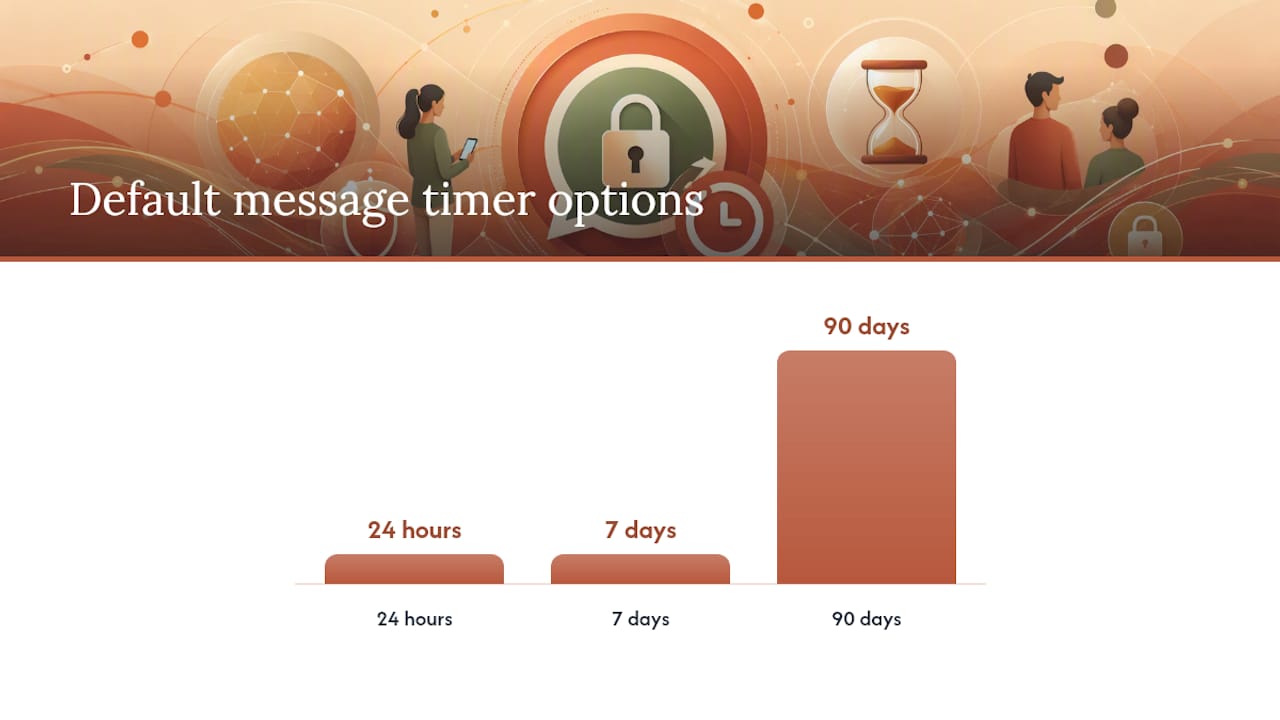
Default message timer controls how long new chats keep messages before they vanish. Options run 24 hours, 7 days, or 90 days. For most small businesses, 90 days is the strongest middle ground: it limits long-term exposure of customer conversations while keeping enough recent history for support and follow-up. Regulated industries, like healthcare and legal practices with recordkeeping duties, often need a longer or manual retention approach instead.
- Two-step verification adds a PIN on top of SMS codes, which matters given that text-message scams cost consumers roughly $470 million in 2024, much of it tied to account takeovers.
- Screen lock stops anyone who picks up an unattended phone from reading customer conversations cold.
- Strict Account Settings, announced on WhatsApp’s blog, locks several controls to their most restrictive values in one tap and can block media from non-contacts.
Pro Tip: Before flipping on Strict Account Settings, list every workflow that depends on strangers sending you unsolicited media, like a new patient texting a photo of their insurance card. If that’s core to how you take in customers, skip Strict Account Settings and stick to two-step verification, screen lock, and disappearing messages instead.
Block and report abusive numbers directly from the chat menu, and run a privacy checkup periodically under Settings > Privacy to confirm nothing reverted after an app update.
Your Business Profile Is More Public Than You Think
Your business name, category, phone number, hours, website, and description are all publicly visible in your Business Profile by design, not by accident of a setting you forgot to change. Anyone who messages you sees it before you reply.
- Skip optional fields like a personal email or a secondary address unless customers genuinely need them.
- Edit your profile fields through WhatsApp’s business profile settings and reread what’s published every few months.
- Understand that even encrypted messages leave metadata behind. Meta can see message volume, timestamps, and device information tied to your business account, per the Business App Privacy Policy.
- If you use the Business Platform or a third-party hosting provider for automation, know that the chat itself will disclose when a business uses Meta or third-party hosting.
- Review any vendor’s data processing agreement before connecting a catalog or automation tool, and keep a simple audit trail of what you’ve consented to share.
Choosing Defaults That Fit Your Industry
A general contractor and a dental office should not run identical privacy settings, even though both use the same app.
For most SMBs, the sensible baseline is read receipts on, last seen restricted to contacts, default disappearing messages at 90 days, and two-step verification always on. That combination limits exposure without breaking the everyday back-and-forth of customer service.
- Healthcare, legal, and financial practices often need to preserve records longer than 90 days for compliance, which means archiving key messages externally before they disappear rather than relying on WhatsApp’s retention window.
- Strict Account Settings can quietly break intake if your business depends on customers sending unsolicited photos or documents, so pair it with the workflow audit from the checklist above.
- Put consent language directly into your first automated reply, and store proof of that consent in a CRM rather than only in the chat thread. A set of consent message templates can save you from writing this from scratch.
- Revisit these defaults on a fixed schedule rather than after a scare. Once a quarter is a reasonable cadence for most practices.
How Diazluna Sets Up Bilingual Practices
Diazluna works with dental, legal, and medical practices serving Hispanic clients, and the patterns that hold up across those clients tend to look similar. Default disappearing messages usually get set to 90 days, profile fields get trimmed to what a client actually needs (hours, location, and one contact number, nothing more), and every new chat opens with a bilingual consent message before any appointment details get exchanged.
- Role-based access limits which staff members can see message history, so a front-desk assistant can confirm a booking without pulling up unrelated patient conversations.
- Appointment workflows stay intact even with tighter privacy settings, because booking happens through structured prompts rather than free-form media uploads.
- For clinics weighing retention against compliance, WhatsApp’s limits for US clinics and the note that WhatsApp is not HIPAA compliant are worth reading before you finalize a retention policy.
The Tradeoff Nobody Talks About Enough
Every privacy setting you tighten costs you a little convenience somewhere else. That’s not a reason to skip them, it’s a reason to be deliberate about which tradeoff you’re making and why. I’d rather see a business run a quarterly fifteen-minute settings review than chase the “perfect” configuration once and never look at it again. Write down what you decided and why. Six months from now, when a client asks why their photo request bounced, you’ll want that answer ready.
— Francisco
A Managed Alternative for Bilingual Practices
Hardening these settings yourself works, but it takes ongoing attention most practice owners don’t have spare hours for. Diazluna is built as an alternative to piecing together a website, a receptionist, and WhatsApp separately. It’s a bilingual digital front desk that pairs a fully optimized Spanish and English website with a 24/7 AI receptionist and integrated WhatsApp messaging, so consent, routing, and privacy-aware intake happen automatically instead of depending on a staff member remembering to ask.
The AI receptionist handles calls and messages in both languages, sends real-time summaries, and flags urgent cases for a human instead of letting them sit in an inbox. For appointment-heavy practices, pairing this with a QR code booking flow or a scheduling and follow-up integration keeps intake structured rather than open-ended, which sidesteps a lot of the tradeoffs Strict Account Settings creates. Diazluna’s Sitio + María plan runs $199 per month and bundles the website, receptionist, and WhatsApp integration together. Check current plans and get your practice set up at Diazluna.
Sources
- WhatsApp Business App Privacy Policy
- How to change your privacy settings
- Privacy Protections | WhatsApp for Business
- WhatsApp’s Latest Privacy Protection: Strict Account Settings - WhatsApp Blog
- FTC: New data show top text-message scams, 2024 losses
FAQ
Can a WhatsApp Business account see who viewed your profile?
No. WhatsApp does not show businesses a list of who viewed their profile or status. You can see who’s read individual messages if read receipts are on, but there’s no profile-view tracking feature on either the personal or business app.
What’s the difference between a business WhatsApp and a personal WhatsApp account?
A WhatsApp Business account adds a public profile with your hours, category, website, and description, plus tools like catalogs and automated greetings, per WhatsApp’s Business Platform documentation. Personal accounts don’t expose that business-profile layer and generally see less metadata collection tied to business features.
How do I know if my WhatsApp messages are being monitored?
Messages between you and a contact remain end-to-end encrypted, so WhatsApp itself can’t read the content. If a business connects a third-party hosting provider or the Business Platform, the chat will disclose that hosting relationship directly in the conversation.
What are the disadvantages of a WhatsApp Business account?
Your business profile fields are public by default, and tightening settings like Strict Account Settings can block unsolicited media from customers, which disrupts intake for some practices. A managed setup like Diazluna helps offset that by handling consent and routing before sensitive information ever reaches an open chat.