September 4, 2026
9 Approval Ready WhatsApp Templates for Bilingual Practices
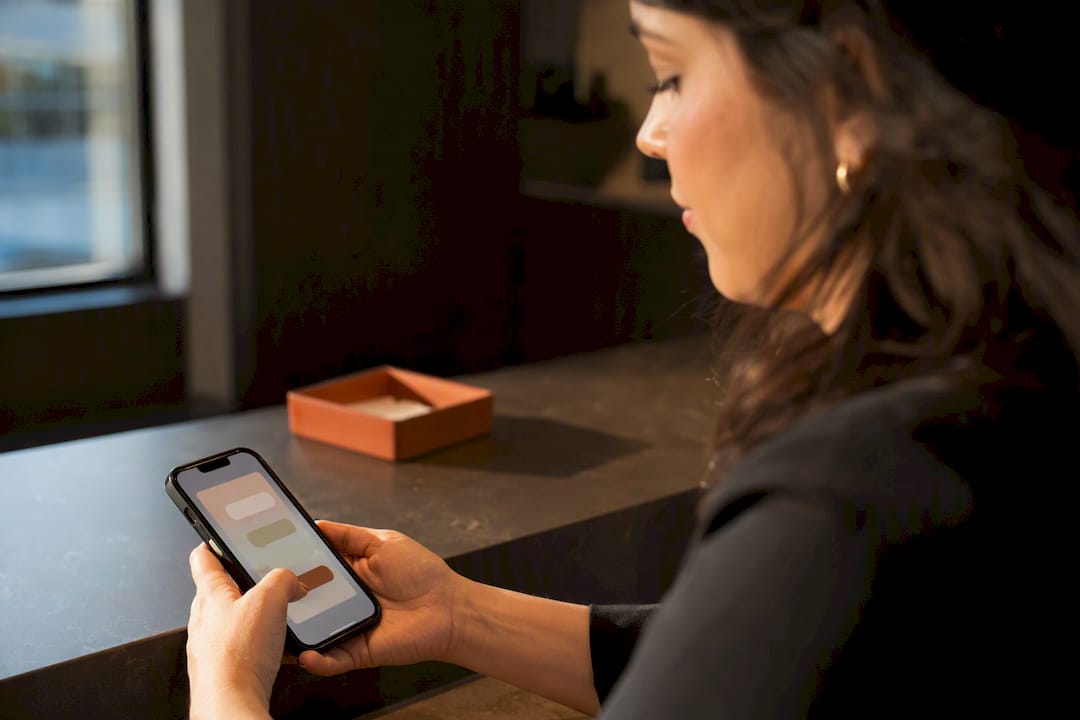
WhatsApp message templates are pre-approved, structured messages businesses must use to start a conversation or reply outside the 24-hour window customers have to respond within. They’re mandatory for any outbound message once that window closes, but free-form replies still work inside it. Your next move: draft one high-value template, like an appointment reminder, and submit it for review today.
TL;DR:
- Using the correct category is crucial, as utility, marketing, and authentication templates are reviewed and priced separately to avoid rejection and extra costs.
- Keep variables simple, with no adjacent placeholders and fallback values, to ensure templates are clear and meet formatting limits, especially under 300 characters for better engagement.
- Submit your most at-risk template early in the morning to gain a full day for rework if it gets flagged for manual review, reducing delays.
- Build a small, well-tested library of templates with one or two variables for core flows, rather than creating excessive, unvalidated options, to improve approval rates.
- Managing bilingual templates requires understanding regional tone differences and avoiding direct translations, as Meta reviews each language version separately for accuracy and appropriateness.
Table of Contents
- What Are the Different Types of WhatsApp Message Templates?
- How Do You Create and Submit a WhatsApp Message Template?
- Why Do WhatsApp Templates Get Rejected?
- What Are Some Ready-to-Use WhatsApp Template Examples?
- How Long Does WhatsApp Template Approval Take?
- How Do You Manage and Test a Template Library at Scale?
- What Bilingual Practices Get Right About WhatsApp Templates
- Why Most Practices Should Not Build This Alone
- Get Bilingual WhatsApp Templates Set Up Without the Learning Curve
- Where to Verify the Details
- Sources
What Are the Different Types of WhatsApp Message Templates?
Meta sorts every template into one of three categories, and picking the wrong one is the fastest way to get rejected. Utility templates cover transactional updates: order confirmations, appointment reminders, shipping alerts. Marketing templates cover promotions, announcements, and re-engagement pushes. Authentication templates exist for one job only: delivering one-time passcodes.
Each template is built from four components:
- Header — optional text or media (image, video, document) that sits at the top
- Body — the core message, where variables like {{1}} and {{2}} pull in names, dates, or order numbers
- Footer — a short line of fine print, often a disclaimer or business name
- Buttons — call-to-action links or quick-reply options that turn the message into an action
Category selection shapes both approval odds and cost. A utility template disguised as a promotion gets flagged almost every time, and Meta’s per-conversation pricing varies by category, so guessing wrong hits your budget too.
How Do You Create and Submit a WhatsApp Message Template?
Before you touch the template builder, confirm you have a WhatsApp Business Account, a registered phone number, and access to either Meta Business Manager or a Business Solution Provider (BSP) dashboard. Most practices route through a BSP because it bundles template management with broader messaging tools.
From there, the workflow is consistent across platforms:
- Open the template tool in Business Manager or your BSP dashboard.
- Name the template using lowercase letters and underscores (no spaces).
- Select the language and the category: utility, marketing, or authentication.
- Write the header, body, footer, and any buttons, inserting variables where personalization is needed.
- Add a short description explaining when and why the template will be sent.
- Submit for review and monitor status: pending, approved, or rejected.
- Once approved, retrieve, test, or delete templates through the API or your BSP dashboard.
Before hitting submit, confirm every variable has a fallback value, the category matches the actual content, and the description explains the trigger event in plain terms.
Pro Tip: Submit your riskiest template first thing in the morning. If it gets flagged for manual review, you’ll have a full business day to fix and resubmit instead of losing 24 hours overnight.
Why Do WhatsApp Templates Get Rejected?
Most rejections trace back to sloppy variable use or vague language, not some obscure policy violation. Meta’s guidance is specific: avoid placing two variables next to each other (like “{{1}} {{2}}”) with no static text between them, and give every placeholder a realistic fallback value so reviewers can see what the live message will look like.
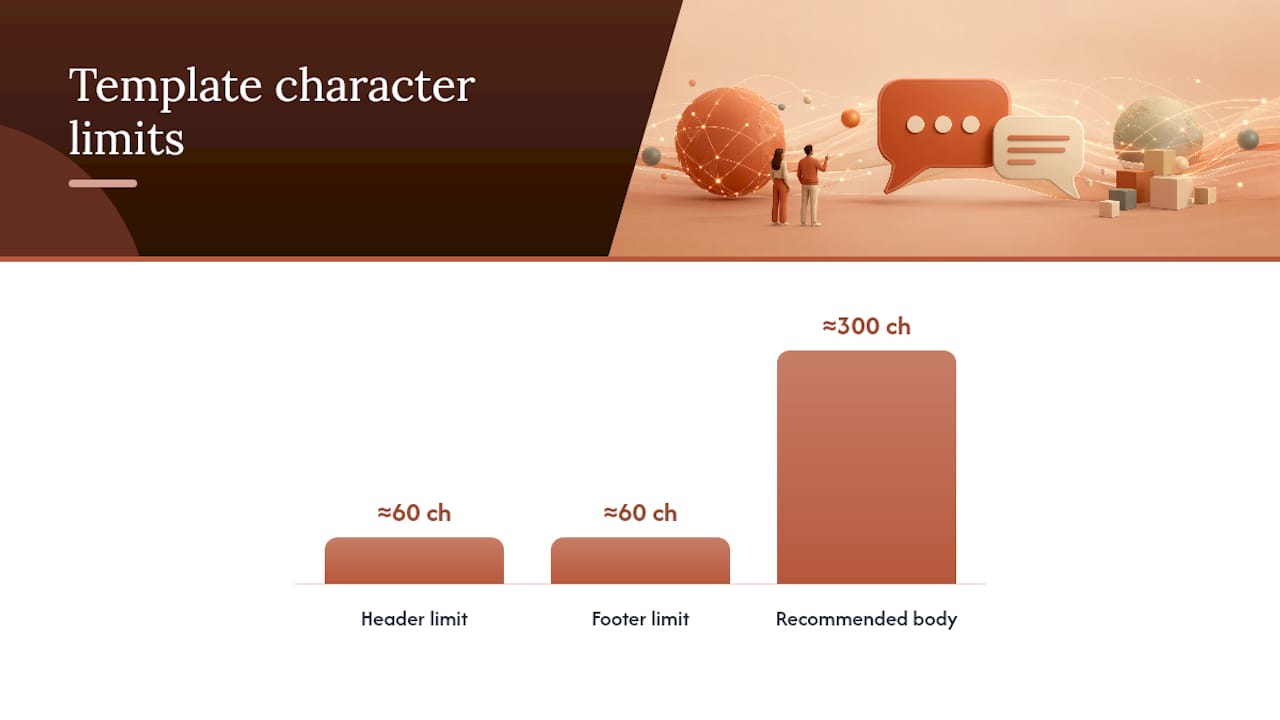
Formatting limits matter too. Headers cap around 60 characters, footers around 60, and while the body allows more, templates under roughly 300 characters tend to perform better for engagement.
The most common rejection triggers:
- Category mismatch (marketing content submitted as utility)
- Vague phrasing that doesn’t explain why the recipient is getting the message
- URL shorteners instead of full, visible links
- Excessive punctuation or all-caps text
- Prohibited content, including certain health claims or clinical details
Run a quick preflight: correct category, clear trigger sentence, no adjacent variables, fallback values filled in, no shortened links. Ambiguous or overly promotional content inside utility templates is the single biggest cause of manual review, according to platform data from template management tools.
What Are Some Ready-to-Use WhatsApp Template Examples?
Building a small library across categories beats scrambling for a one-off template every time a campaign launches. Here are templates organized by business use case, each with its category, variable count, and a sending note.
- Appointment reminder (Utility, 2 variables): “Hi {{1}}, this confirms your appointment on {{2}}. Reply CONFIRM or call us to reschedule.” Send 24-48 hours ahead.
- Appointment follow-up (Utility, 1 variable): “Thanks for visiting us, {{1}}. Let us know if you have any questions about your visit.” Send same-day.
- Order confirmation (Utility, 2 variables): “Order {{1}} confirmed. Estimated delivery: {{2}}.” Trigger immediately on purchase.
- Shipping update (Utility, 2 variables): “Your order {{1}} has shipped and should arrive by {{2}}.” Trigger on carrier handoff.
- Payment reminder (Utility, 2 variables): “Hi {{1}}, your invoice of {{2}} is due soon. Reply here with questions.” Send 3 days before due date.
- One-time passcode (Authentication, 1 variable): “{{1}} is your verification code. Do not share this code.” Keep under 10 seconds delivery expectation.
- Welcome message (Marketing, 1 variable): “Welcome, {{1}}! We’re glad to have you. Reply STOP anytime to opt out.” Send once, on opt-in.
- Re-engagement (Marketing, 1 variable): “We miss you, {{1}}. Come back for something new this week.” Limit to inactive segments only.
- QR-code booking prompt (Utility, 0 variables): “Scan the code below to book your next visit in seconds.” Pair with a header image.
Keep it to one or two variables per template and stick to short, direct sentences. A library of 8 to 12 approved templates covering your core flows is usually enough to avoid last-minute submission delays.
How Long Does WhatsApp Template Approval Take?
Clean, specific templates usually clear automated review within minutes. Templates flagged for ambiguous language, borderline content, or category mismatches move to manual review, which typically takes 24 to 48 hours.
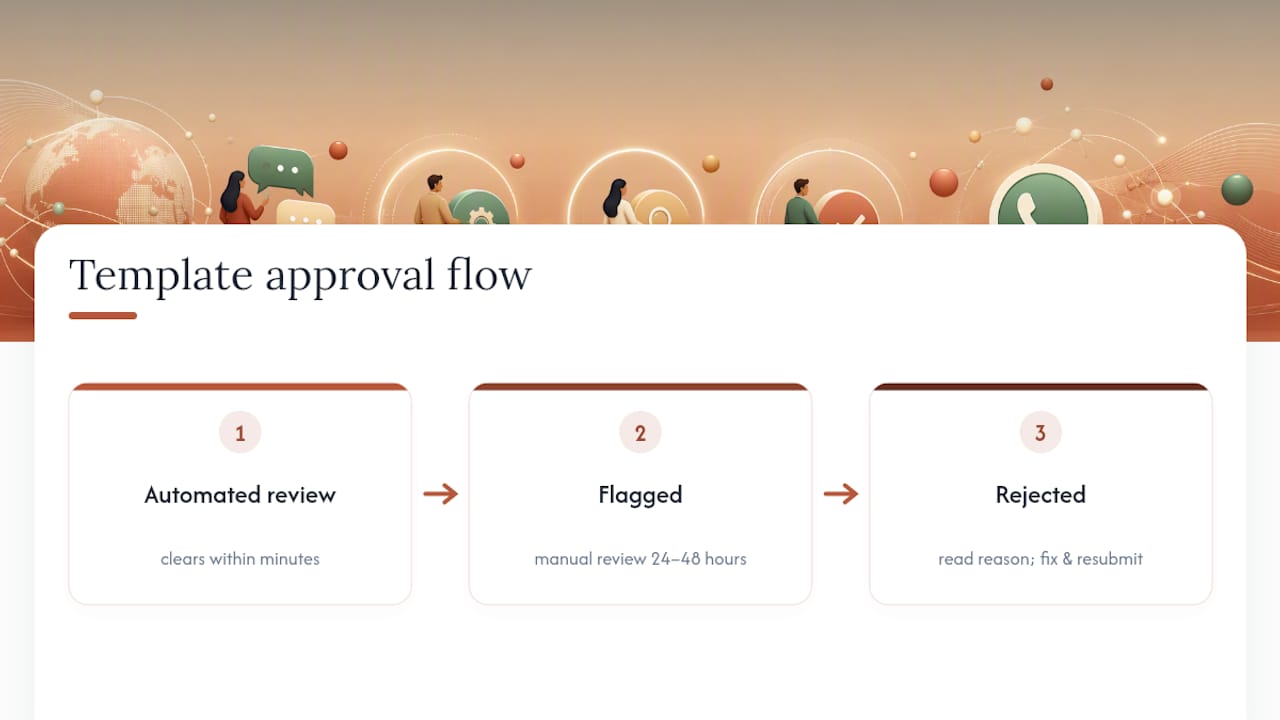
If a template gets rejected, read the stated reason literally. “Incorrect category” means resubmit under a different category, not rewrite the wording. “Invalid format” usually points to a placeholder or button configuration issue.
Pricing varies by category and by the country you’re messaging into, and rates shift periodically, so check current rates directly with Meta or your BSP before building a campaign budget around a specific number. Utility templates tied to an existing customer interaction often price differently than marketing templates sent cold.
How Do You Manage and Test a Template Library at Scale?
Treat your template library like a codebase, not a junk drawer. Use consistent naming conventions (category_purpose_language, like utility_appt_reminder_en), keep language variants clearly labeled, and archive anything you haven’t used in 90 days.
Before rolling a new template out to your full customer list, test it on a small segment first. Preview it with realistic fallback values so you catch awkward phrasing before customers do. Run A/B tests on button wording, since a small change in the call-to-action often shifts response rates more than the body copy does.
Track four metrics on a regular cadence:
- Delivery rate — are messages actually reaching customers
- CTA click-through — are recipients acting on buttons or quick replies
- Opt-out or block rate — an early warning sign a template feels intrusive
- Approval success rate — how often your submissions clear review on the first attempt
Pro Tip: If your opt-out rate creeps up on a marketing template, don’t just soften the wording. Check whether you’re sending it to a segment that never should have received it in the first place.
What Bilingual Practices Get Right About WhatsApp Templates
Diazluna builds bilingual front-desk systems for dental, legal, and healthcare practices, and template strategy is where a lot of bilingual outreach quietly breaks down. A reminder that reads perfectly in English often loses its warmth in a literal Spanish translation, and Meta reviews each language version separately.
Practices using WhatsApp appointment reminders alongside QR-code booking flows see fewer missed visits because the confirmation step happens in the client’s preferred language automatically. Bilingual follow-up sequences built the same way keep dropped leads from disappearing entirely, which is often where practices lose Hispanic clients without ever knowing why.
Why Most Practices Should Not Build This Alone
The technical mechanics of WhatsApp templates aren’t hard to learn. What’s hard is running two parallel libraries in two languages, keeping both approved, and making sure a Spanish-speaking client gets the same responsiveness as an English-speaking one. Most practices default to translating their English template into Spanish once and calling it done. That’s a mistake. Tone, formality, and even the acceptable level of directness shift between the two languages, and a template that sounds professional in English can sound cold or overly formal in Spanish depending on the region your clients are from.
I’d also push back on the instinct to build a huge template library up front. Ten well-tested templates covering your actual daily flow beat forty templates nobody has stress-tested against real rejection reasons. Start narrow, watch your approval success rate, then expand.
— Francisco
Get Bilingual WhatsApp Templates Set Up Without the Learning Curve
There is an alternative to hiring a developer or juggling a separate translation service for template management that combines a bilingual website, a 24/7 AI receptionist fluent in Spanish and English, and WhatsApp integration, including QR-code booking prompts and bilingual appointment reminders, as one connected system instead of three disconnected tools.
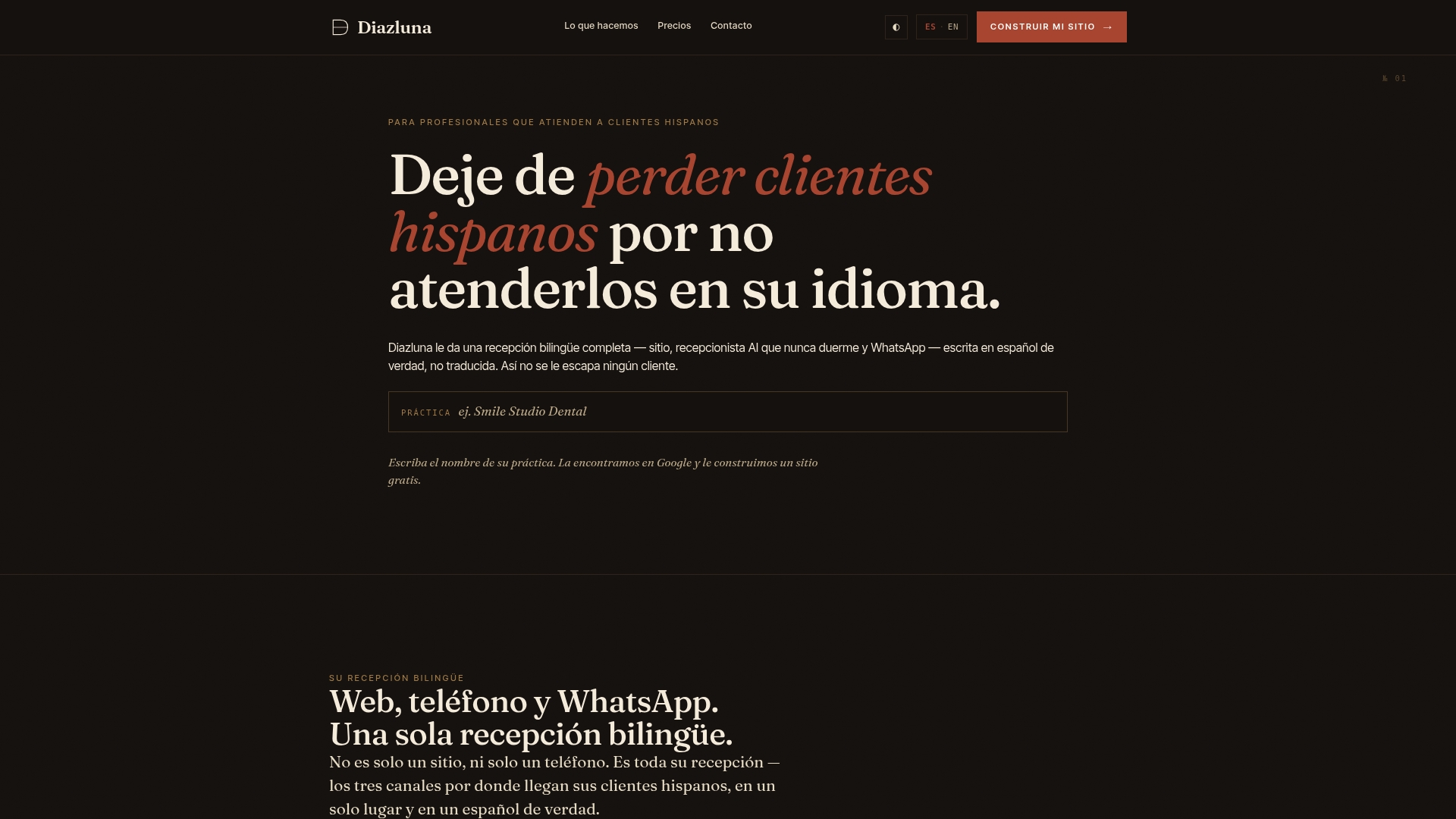
For a dental practice, that means patient engagement templates that go out automatically in the language each patient prefers. For a law firm, it means a bilingual AI receptionist that catches after-hours inquiries in either language before they go to a competitor. Healthcare practices should note that WhatsApp itself is not HIPAA compliant on its own, so implementation details matter.
If you’re ready to see how this works for your practice specifically, visit Diazluna’s bilingual front desk platform to check setup options for dentists, attorneys, or medical clinics and get your bilingual WhatsApp workflow running.
Where to Verify the Details
For the official rules on template structure and review, go straight to Meta’s developer documentation on template fundamentals and WhatsApp’s own guide to managing message templates. For formatting specifics and engagement benchmarks, Sinch’s WhatsApp template guide is a solid practical reference.
Sources
- Template fundamentals - Meta for Developers - Facebook
- Managing Message Templates with the WhatsApp Business Platform
- How to create and manage WhatsApp message prompts — Endear Help
- 50+ WhatsApp Message Templates That Get Approved Fast in 2026 (Copy-Paste Ready)
- How do I use WhatsApp templates? Guidelines, tips, examples!