October 28, 2026
GA4 WhatsApp Tracking: Set Up Click Events Step by Step
GA4 can track the click on a WhatsApp link, and with Google Tag Manager you can turn that click into a named event, a key event and a line in your campaign reports. What GA4 cannot do is see whether the person then sent a message, what they said, or whether they became a client. This guide shows the click setup, how to test it, how to tie it to campaigns, and where to pick up the story after the click.
It is written for practice owners and the people who run their marketing: dental offices, law firms, clinics and small businesses that get inquiries on WhatsApp, often from Spanish-speaking clients, and want to know which pages and ads produce them.
TL;DR
- GA4 records the tap on a WhatsApp link, not the conversation. Treat the click as a sign of intent, not as a lead.
- The cleanest setup is a GTM trigger on links containing
wa.meorapi.whatsapp.com, firing a dedicated GA4 event such aswhatsapp_click, which you then mark as a key event. - Test in GTM Preview and GA4 DebugView before you publish, and on a real phone.
- For campaign attribution, use UTM parameters on the landing page plus a distinct entry link or prefilled message per campaign.
- Count what happens after the click (reply, booked appointment, new client) in your inbox or CRM, then compare it with GA4.
Table of Contents
- What GA4 can and cannot see on WhatsApp
- Check what GA4 already records
- Set up WhatsApp click tracking with Google Tag Manager
- Common reasons the click does not register
- Attribute WhatsApp clicks to campaigns
- A click is intent, not a lead
- Limits and privacy: what your numbers will miss
- Our perspective: track the whole front desk, not only the button
- Where Diazluna fits
- Related setup steps worth doing
- FAQ
- Sources
What GA4 can and cannot see on WhatsApp
When a visitor taps a WhatsApp button on your site, the browser leaves your domain and hands off to the WhatsApp app or WhatsApp Web. GA4 sees the first half of that handoff. It does not see the second.
That gives you a clear split:
| Stage | Can GA4 see it? | Where to record it |
|---|---|---|
| Visit to a page with a WhatsApp button | Yes | GA4 |
| Click on the WhatsApp link | Yes, with the setup below | GA4 |
| Visitor actually sends a first message | No | WhatsApp Business app, inbox or CRM |
| Conversation content and quality | No | Inbox or CRM |
| Booked appointment or signed client | No, unless you send it back | CRM, then optionally imported to ads |
This matches what a 2026 GA4 click-tracking guide concludes: GA4 captures the link click, while the later stages have to be recorded in WhatsApp, an inbox or a CRM. Keep that table in mind as you build, because it decides what you should promise your partners or your boss when you report numbers.
Check what GA4 already records
Before you add anything, look at what is already collected. Google’s documentation says Enhanced Measurement records a click event each time a user clicks a link that leads away from your domain, with parameters such as link_url, link_domain and link_classes, plus an outbound flag. A plain wa.me link is on a different domain, so it may already show up as that generic outbound click.
Two reasons not to stop there:
- A generic
clickevent mixes WhatsApp with every other outbound link: your map, your social profiles, a payment portal. - A named event is easier to mark as a key event and easier for the next person to understand in a report.
One guide on tracking WhatsApp clicks with GTM points out that Enhanced Measurement may record the same link as well. Having both is not wrong. Just decide that only the dedicated event counts as your key event, so the same tap is never counted twice in a conversion report.
Set up WhatsApp click tracking with Google Tag Manager
This assumes your GA4 property and a GTM container are already installed on the site. The steps follow Google’s own tag setup flow, with a WhatsApp-specific trigger.
Step 1: Enable the click variables
In GTM, open Variables and configure the built-in click variables. Turn on Click URL, Click Text, Click Classes and Click Element, as one GTM walkthrough recommends. You will use Click URL to filter and report on the link.
Step 2: Create the trigger
Google’s click trigger documentation describes two types, and your choice depends on how the button is built:
- Just Links tracks HTML links (anchor tags). It also supports Wait for Tags and Check Validation. Use it when your button is an ordinary link to
wa.me/.... - All Elements tracks clicks on links, images and buttons. Use it when the visible control is a button or an image that is not itself a link.
Create a Just Links trigger and restrict it with a condition rather than firing on every click. Set Click URL to contain wa.me, then add alternatives for api.whatsapp.com and whatsapp://. A GA4 and GTM lead-tracking guide recommends matching all three, because different site builders and plugins write the link differently.
If your site uses a floating chat widget that is a JavaScript element with no underlying link, a link trigger will never fire. In that case the widget has to push a custom event to the dataLayer, and your trigger listens for that event instead. This is a common reason for “tracking that works in testing on one button and not on another.”
Step 3: Create the GA4 event tag
Google Tag Manager Help describes the process: create a Google Analytics: GA4 Event tag, enter your Measurement ID and an event name, optionally add parameters, and attach the trigger.
Suggested settings:
- Event name:
whatsapp_click - Parameters:
link_urlset to the Click URL variable,click_textset to Click Text, andpage_locationset to the page URL - Optional: a
click_locationparameter such as “header,” “footer” or “appointment page” if you have several buttons and want to know which one earns its place
Some teams send generate_lead instead, which GA4 treats as a recommended event name. That is a fair choice, but be honest about the meaning: a tap on WhatsApp is not a generated lead. A name like whatsapp_click keeps the label truthful.
Step 4: Test before you publish
Google Analytics Help recommends using GTM Preview before publishing a new event so you can inspect the recorded click data. Do this:
- Open Preview mode in GTM and load your site.
- Click each WhatsApp button on the page. Confirm a Link Click appears in the summary and the GA4 event tag shows as fired.
- Open the tag and check that the parameters carry the values you expect.
- Open GA4 DebugView and Realtime and confirm the event appears with its parameters.
- Repeat on a real phone, since that is how most of your visitors will tap the button. One practitioner also advises testing on a mobile device and checking that the conversion fired.
A warning on DebugView: Google says it needs debug mode, and events will not appear when privacy controls or Consent Mode prevent analytics cookie consent. If the tag fires in GTM Preview but nothing shows in DebugView, check your consent banner state before you start rewriting triggers.
When everything checks out, publish the container version and give it a clear name, for example “Add WhatsApp click event.” Future you will be grateful.
Step 5: Mark the event as a key event
Once whatsapp_click has appeared in GA4 at least once, mark it as a key event in the Admin area so it shows in conversion reporting. Do this for the dedicated event only, not for the generic click, for the reason given above.
Common reasons the click does not register
Most failed setups come from a short list:
- The button is not a link. Widgets and some page-builder buttons run JavaScript. Use All Elements or a dataLayer push.
- The URL pattern is too narrow. If you only match
wa.me, you miss buttons that point toapi.whatsapp.com/send. Use a regular expression or several conditions. - The trigger fires on every click. Forgetting the condition is the classic mistake; Google’s documentation supports restricting the trigger with a URL condition for exactly this reason.
- Consent blocks the tag. If a visitor declines analytics cookies and your tag is set to respect that, no event is sent. Google’s guidance says to use a CMP or in-house solution, have the banner respect user choices, and implement Consent Mode where appropriate.
- The page has two tags sending the same event. An old plugin plus GTM can double your numbers. Look for duplicate
whatsapp_clickevents in DebugView.
It also helps to keep your own link format consistent. If you are still choosing how your buttons should open a chat, our piece on click-to-chat mistakes for bilingual practices covers the pitfalls that affect how the link behaves for visitors.
Attribute WhatsApp clicks to campaigns
A count of clicks is useful. A count of clicks by source is what lets you make budget decisions.
Google Analytics documents the campaign parameters campaign_source, campaign_medium, campaign_name, campaign_term, campaign_content and campaign_id, as listed in its configuration help. In practice, that means tagging the links to your landing pages with UTM parameters so that each session arrives labeled.
Once the Google tag has loaded in the visitor’s browser, you can break WhatsApp clicks down in reports by session source and medium, session campaign, page path and link URL, as this GA4 guide describes. A simple exploration with whatsapp_click as the event and session campaign as the dimension answers the first question most owners ask: which ad or page gets people to tap?
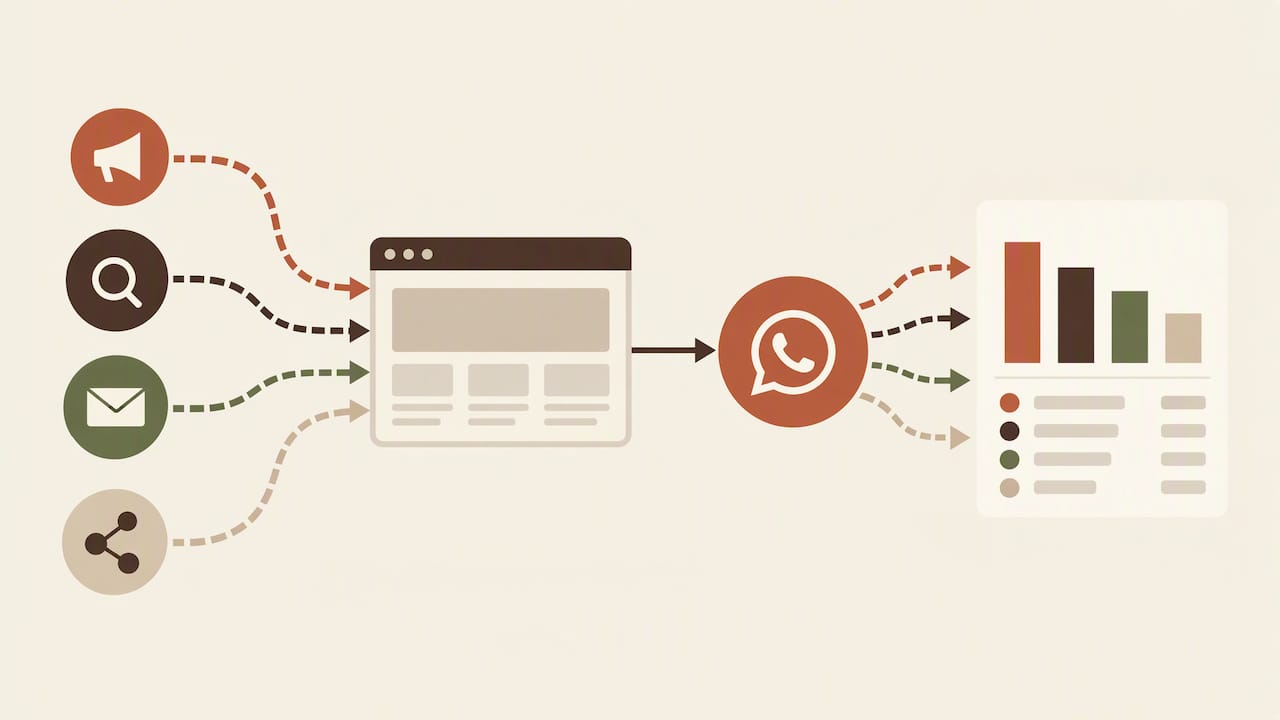
The harder question is which campaign produced the conversation. The click is recorded on your website, but the chat lives in WhatsApp, and the two are not joined automatically. Platform guidance from respond.io recommends campaign-specific landing pages and identifiers such as click IDs or prefilled WhatsApp text, while cautioning that prefilled text does not automatically synchronize with Google Ads or GA4.
Here is a workable approach for a small practice:
- Give each major campaign its own landing page, or at least its own button.
- Use a different prefilled opening message for each one, such as a short phrase that names the service. The first message in your inbox then tells you where the person came from.
- Log the source in your CRM or even a simple spreadsheet when the chat starts.
- Compare weekly: clicks in GA4, new chats in WhatsApp, appointments booked.
A sound method here, described by one measurement specialist, is to record the source in a CRM and send qualified outcomes back to advertising platforms instead of treating every button click as a lead. If you do run paid campaigns, that is the version that stops the algorithm from optimizing toward curious tappers.
If you want a wider view of how to read traffic sources inside GA4, including newer ones, this walkthrough on checking AI traffic in GA4 shows the same report-building logic you will use for WhatsApp.
A click is intent, not a lead
The most common reporting mistake is to put the number of WhatsApp clicks in a slide and call it “leads.” Some of those taps will never become a message: the visitor did not have WhatsApp open, changed their mind, or hit the button by accident. Some messages will be a wrong number, a vendor or a question your practice cannot help with.
The measurement view I trust is that a click is a proxy for intent, not a conversation or a revenue event, and that dependable lead reporting needs a CRM or inbox stage after GA4. The same logic applies to forms: a form view is not a submission, and a submission is not a qualified inquiry. If you collect intake details before a consultation, tools for collecting data with Microsoft Forms can help you structure what you capture after the first contact.
A practical way to report:
- Clicks: from GA4, your top-of-funnel intent signal.
- Conversations started: from WhatsApp or your inbox, counted weekly.
- Qualified inquiries: conversations that match your service and location.
- Booked appointments or retained clients: from your scheduling system or CRM.
The ratio between the first and second numbers is itself informative. If clicks are high and conversations are low, look at the prefilled message, the hours you answer, and whether the visitor lands in a language they are comfortable with. For many US practices serving Spanish-speaking clients, the second one matters a lot.
Our article on WhatsApp CRM integration for bilingual practices goes deeper on getting those later stages into one place.
Limits and privacy: what your numbers will miss
Expect GA4 to undercount. Clicks are only recorded for visitors whose browser loaded the Google tag. According to a GA4 WhatsApp tracking guide, declined cookie consent where the tag is blocked, ad blockers, privacy-focused browsers and data thresholds can all lower totals. Treat your GA4 figure as a floor, and compare it with the number of chats you actually receive.
Privacy deserves care, especially in healthcare and legal settings:
- Never put a person’s name, phone number, health condition or case type into an event parameter. Keep parameters to things like page, button location and link URL.
- Be careful with prefilled messages. Do not prefill sensitive details; a neutral line such as a request for an appointment is enough.
- Make sure your consent banner and tag setup match each other, as Google’s consent guidance above describes.
- If you will message patients or clients on WhatsApp, get their permission first. See our guides on WhatsApp consent messages and WhatsApp opt-in for healthcare.
Healthcare practices in particular should read the limits on what can travel through WhatsApp before building a workflow on it: WhatsApp for US clinics explains where the boundaries sit. For legal or compliance questions about your own practice, ask your compliance officer or attorney rather than relying on a tracking guide.
Our perspective: track the whole front desk, not only the button
We build bilingual front desks for practices that serve Hispanic clients, so we see the same pattern often. A practice installs a WhatsApp button, gets a nice count of clicks in GA4, and still loses people. The loss does not happen at the click. It happens in the hours afterward: a message arrives in English only, nobody replies after 6 p.m., or the first answer reads like a machine translation.
That is why we think of WhatsApp tracking as two jobs. The first is the one in this guide: know which pages and campaigns make people reach out. The second is making sure that when they do, someone answers promptly in natural Spanish or English, and that the conversation ends in an appointment on the calendar. Analytics only tells you the first half of that story, and a decent report on the first half can hide a weak second half.
If you do only three things after reading this, we would pick these: set up one dedicated whatsapp_click event, give each campaign a distinct opening message, and count real conversations every week. Everything else is refinement.
— Francisco
Where Diazluna fits
If you would rather not stitch together a website, a chat widget and a receptionist yourself, Diazluna combines a bilingual website, a 24/7 AI receptionist named María and WhatsApp integration in one subscription. Plans are published as follows: Solo Sitio at $99 per month or $990 per year, Sitio + María at $199 per month or $1990 per year, and Sitio + María Pro at $349 per month or $3490 per year, with a one-off activation fee of $399. You can see the options on the Diazluna plans page, and your site’s WhatsApp buttons can be tracked using the steps above.
Related setup steps worth doing
Tracking is easier when the surrounding channel is in good shape. A few pages from our own library cover the pieces that sit around the click:
- WhatsApp Business setup for healthcare for getting the account itself right.
- WhatsApp QR code appointments for offline touchpoints, which GA4 will not see at all unless the QR code points to a tagged page.
- WhatsApp appointment booking for turning a conversation into a booking quickly.
A note on QR codes: if a flyer or waiting-room poster sends people straight to WhatsApp, there is no website session and therefore no GA4 click. Point the code to a short, tagged page on your site that then offers the WhatsApp link, or use a distinct opening message for that channel so you can count it by hand.
FAQ
Can GA4 track WhatsApp messages?
No. GA4 can record the click on a WhatsApp link on your site, but it cannot see whether the person sent a message or what was said. Message counts and conversation outcomes have to come from WhatsApp, your inbox or a CRM.
Do I need Google Tag Manager to track WhatsApp clicks?
Not strictly, since Enhanced Measurement may already log outbound clicks to a wa.me link. But GTM lets you create a dedicated whatsapp_click event with parameters and mark it as a key event, which keeps your reports clear. It is also the easiest way to handle several buttons on one site.
Why does my WhatsApp event show in GTM Preview but not in GA4?
The most likely cause is consent or debug settings. DebugView needs debug mode, and events will not appear when privacy controls or Consent Mode block analytics cookie consent. Check your banner state, then look in Realtime as well as DebugView.
Should I mark the WhatsApp click as a key event?
Yes, if you use the dedicated event and understand it measures intent. Mark only that event, not the generic click, so the same tap is not counted twice. Report real conversations and booked appointments next to it, so the click number is never mistaken for lead volume.
Sources
- Track WhatsApp Clicks and Leads in GA4 and Google Ads
- GA4 Enhanced measurement events
- How to Track WhatsApp Button Clicks with Google Tag Manager
- How to Track WhatsApp Clicks in Google Analytics 4
- Track WhatsApp Button Clicks with GA4 and GTM
- Track WhatsApp Leads in GA4 with Google Tag Manager
- Click trigger, Tag Manager Help
- Set up Google Analytics events in Tag Manager
- Event setup Q&A, Analytics Help
- Monitor events in DebugView, Analytics Help
- Consent and GA4 property setup, Analytics Help
- Reuse configuration settings in Google Tag Manager, Analytics Help
- How to Track WhatsApp Clicks in Google Tag Manager
- How to Attribute WhatsApp Conversations to Non-Meta Ads
- Track LLM Traffic in Google Analytics 4
- Leveraging Microsoft Forms for Data Collection and Surveys